Featured

Laptop specifications.

CPH- Practical 1

Laptop specifications and Identify type of Laptop and verify its specifications.

Practical -1

Part-A

1) Laptop Specifictions.

A laptop computer (also shortened to just laptop; or called a notebook computer) is a small, portable personal computer (PC) with a “clamshell” form factor, typically having a thin LCD or LED computer screen mounted on the inside of the upper lid of the clamshell and an alphanumeric keyboard on the inside of the lower lid. The clamshell is opened up to use the computer. Laptops are folded shut for transportation, and thus are suitable for mobile use.Its name comes from lap, as it was deemed to be placed on a person’s lap when being used. Although originally there was a distinction between laptops and notebooks (the former being bigger and heavier than the latter), as of 2014, there is often no longer any difference. Laptops are commonly used in a variety of settings, such as at work, in education, for playing games, Internet surfing, for personal multimedia, and general home computer use.

Laptops combine all the input/output components and capabilities of a desktop computer, including the display screen, small speakers, a keyboard, hard disk drive, optical disc drive, pointing devices (such as a touchpad or trackpad), a processor, and memory into a single unit. Most modern laptops feature integrated webcams and built-in microphones, while many also have touchscreens. Laptops can be powered either from an internal battery or by an external power supply from an AC adapter. Hardware specifications, such as the processor speed and memory capacity, significantly vary between different types, makes, models and price points.

Design elements, form factor and construction can also vary significantly between models depending on intended use. Examples of specialized models of laptops include rugged notebooks for use in construction or military applications, as well as low production cost laptops such as those from the One Laptop per Child (OLPC) organization, which incorporate features like solar charging and semi-flexible components not found on most laptop computers. Portable computers, which later developed into modern laptops, were originally considered to be a small niche market, mostly for specialized field applications, such as in the military, for accountants, or for traveling sales representatives. As the portable computers evolved into the modern laptop, they became widely used for a variety of purposes.

Part-B

Identify type of Laptop and verify its specifications.

All the laptops are created different; they vary by size, weight, power, functionalities, the way users can input data, etc. But all of them are computers in small package. The laptop remains a mainstay among computer electronics. Besides with newer hardware geared towards performance, laptops are a viable option for those who want a mobile device that can do a good deal more than what a traditional tablet is capable of. Historically, people divide laptops categories as follows:

1) Ultra books

2) Netbooks

3) Tablets

4) Desktop Laptops

1) Ultra Books.

These laptops are thinner and can weigh a mere 3 pounds, but their screen can come in at around 15 inches. They run on lower-power processors for longer battery life. Usually their keyboard is smaller.

2) Netbooks.

These laptops are very small and inexpensive, with less powerful processors than most laptops and very small keyboards. This type of computers is still around, but they have been upstaged by tablets (such as Apple’s iPad or Microsoft’ Surface), which are marketed in an even sleeker package but provide more powerful resources.

3) Tablets.

Small, thin multitask laptops which have become very popular, and they have certainly exploded in popularity. Their displays range from very small monitors to rather big ones. They can be used to perform even professional tasks, as they can be really powerful (and expensive!) or, on the contrary, they can have a heftier price point…

4) Desktop Laptops.

As they name states, they are used as desktop replacements, and thus they aren’t meant to be portable, even though users can move them easily around the office or the house. These laptops weigh more (up to 5 Kg, as a rule), and they have larger displays, sometimes as big as 20 inches. They have roomier keyboards.
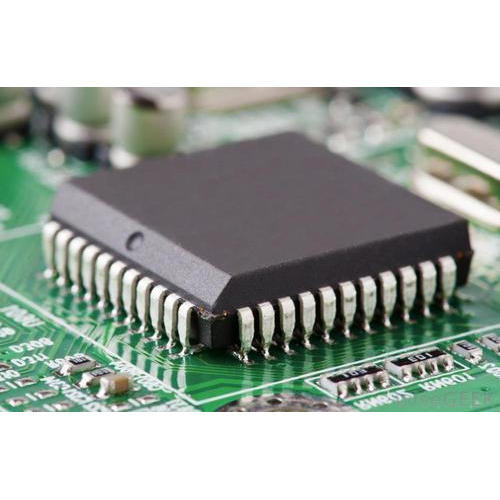
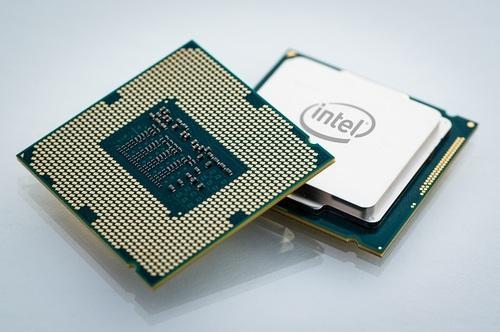
Integrated Circuits.

About Integrated circuits.

An integrated circuit, or IC, is small chip that can function as an amplifier, oscillator, timer, microprocessor, or even computer memory. An IC is a small wafer, usually made of silicon, that can hold anywhere from hundreds to millions of transistors, resistors, and capacitors.

Types of integrated circuits based on Number of Transistor used

1 SSI – Small scale integration.

1 to 10 Transistor.

2. MSI.– Medium scale integration.

10 to 500 tranistor.

3. LSI.- Large scale integration.

500 to 20000 .transistor

4. VLSI. – Very Large Scale integration.

More than 20000

Applications of I.C.

  • Power amplifiers.
  • Small-signal amplifiers.
  • Operational amplifiers.
  • Microwave amplifiers.
  • Radio receivers.
  • Computer memory.
  • Computer Processors.

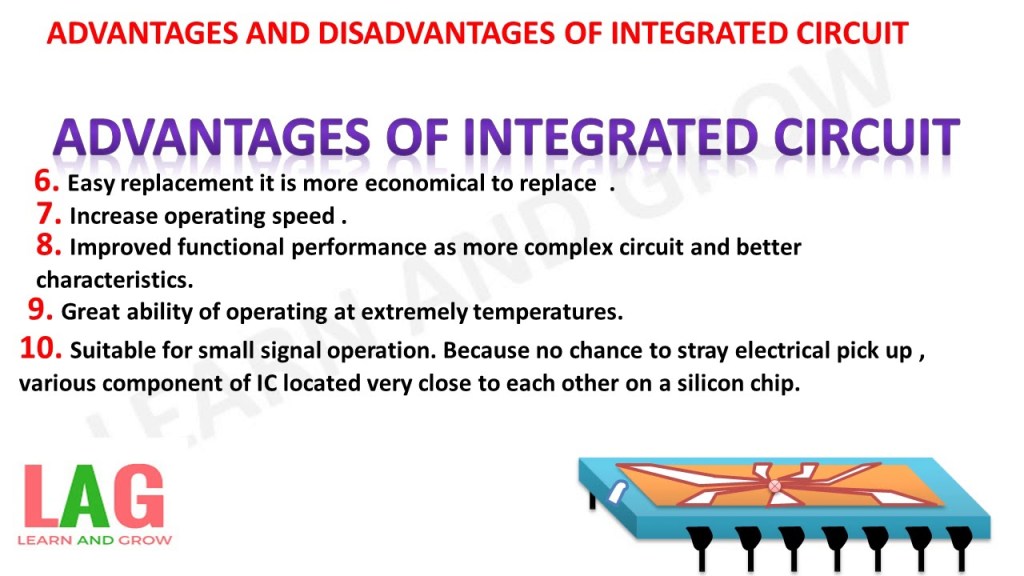
Advantages of IC.

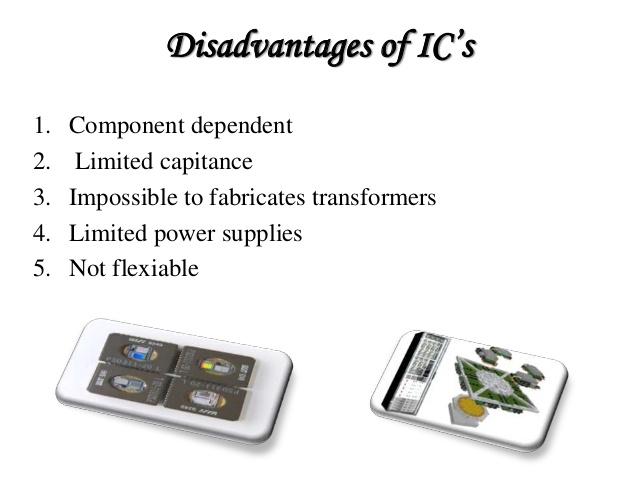
Disadvantages of IC.

Practical-2

Part-A

Identify hardware components on Motherboards.

1) Motherboard.

The computer motherboard connects all the parts(components) of a computer together.
Mainboard, baseboard, mobo (abbreviation), system board, MB (abbreviation), logic board are the synonyms of computer’s motherboard .
The motherboard is the most important component in the PC. All the component such as RAM stick, hard disk drive, optical drives, processor, processor fan and external card are plugin into motherboard.
Computer motherboardis single platform to connect all of the parts (components) of a computer together, Hence it considered as the backbone of a computer.

2) Some of popular manufacturers of the motherboard.
1) Intel
2) ASUS
3) AOpen
4) ABIT
5) Biostar
6) Gigabyte
7) MSI

3) Components of Motherboard.

The important components of a Motherboard are given below:

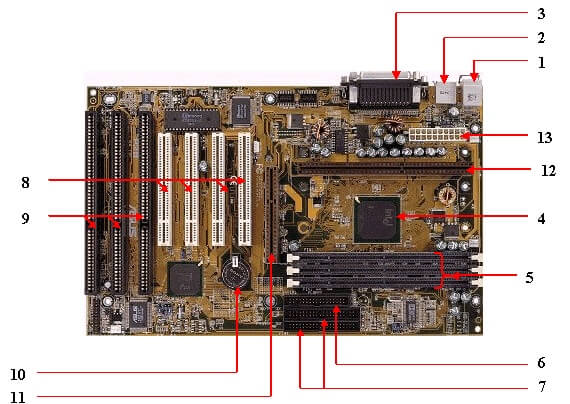
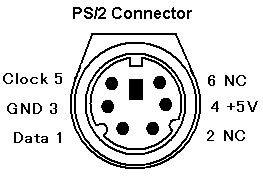
1. Mouse & keyboard :There are two types of keyboard and mouse connectors. First type is called PS/2 and second one is called USB.

2. USB (Universal serial bus) :
USB is Universal serial bus. It is used for connection for PC. There are different devices which is used to connect with USB port such as mouse, keyboards, scanners, cameras, and even printers.USB connector is used to connect computer motherboard and a peripheral device. You can insert or remove peripheral device connect by USB connector without restarting your system.

3. Parallel port :
Most of old printers are used to connect by parallel port. Parallel port used more than one wire for sending or receiving multiple bits of data at once, while serial port uses only one wire. Parallel ports use a 25-pin female DB connector.

4. CPU Chip :
CPU refers to a processor, the central processing unit, also called the microprocessor performs all the task that take place inside a computer system. It is also know as brain of computer.

5. RAM slots :
RAM slots is for attaching RAM on it in general desktop we can see two slot of RAM but in server motherboard we can see 4+ slot of RAM. RAM comes in different size(memory).

6. Floppy controller :
In old motherboard the floppy drive connects to the computer via a 34-pin ribbon cable, one end of ribbon cable is connect to floppy drive and other is connected to the motherboard.

7. IDE controller :
IDE that is Integrated Drive Electronics,also called as ATA or Parallel ATA (PATA).IDE controller is responsible for controlling the hard drive. Today’s computers no longer come with a IDE controller.

8. PCI slot :
PCI stands for Peripheral Component Interface, PCI slot allows you to insert expansion cards into your computer. PCI used to connect additional PCI device like network cards, sound cards,modems,video cards.Some of today’s computers no longer come with a PCI expansion slot.Its connect audio, video and graphics.

9. ISA slot :
ISA stands for Industry Standard Architecture, It is the standard architecture of the Expansion bus. Its connect modem and input devices.

10. CMOS Battery :
CMOS is complementary metal-oxide-semiconductor is used to store BIOS setting in computer motherboard. CMOS Battery also store date and time.

11. AGP slot :
The Accelerated Graphics Port (AGP) is a high-speed point-to-point channel for attaching a video card to a computer system, If you have a modern motherboard, you will almost certainly notice a single connector that looks like a PCI slot.A fast port for a graphics card.

12. CPU slot :
The processor socket (also called a CPU socket) is the connector on the motherboard that connect a CPU.

13. Power supply plug in :
The Power supply provides the necessary electrical power to make the computer system operate. The power supply takes standard 110-V AC power and converts into +/-12-Volt, +/-5-Volt, and 3.3-Volt DC power.
The power supply connector has 20-pins, and the connector can go in only one direction.

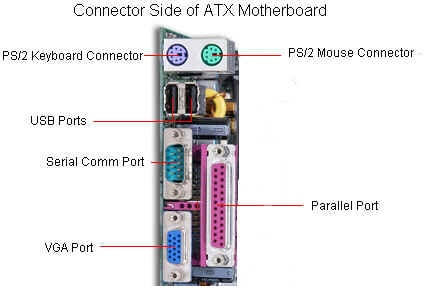
# Connector Side of Motherboard.

Keyboard & Mouse (PS2): This Port is used to connect keyboard and mouse , now a day we use USB connector for keyboard and mouse

Serial or COM : It used to connect some types of modem, scanner, or digital camera

Parallel or Printer : You plug your printer into the parallel, or printer, port. But now printers may use a USB port

USB : Designed to replace older Serial and Parallel ports, the USB (Universal Serial Bus) can connect computers with a number of devices, such as printers, keyboards, mice, scanners, digital cameras, PDAs, and more

Video or Monitor(VGA) : It used to connect your monitor into the video port

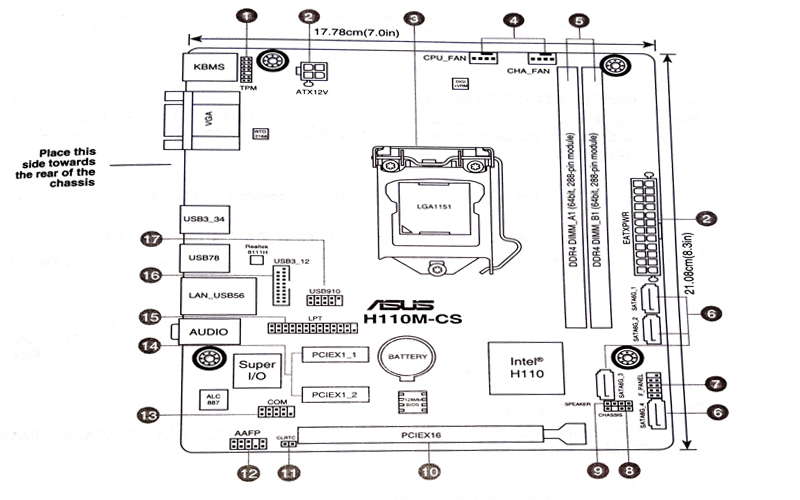
Below Diagram show component of motherboard.

Here we are using Asus H110M-cs motherboard.

(1) TPM connector (14-1 pin TPM)

2 ) ATX power connector (3) CPU socket (4) CPU and chassis fan connector (5) DDR4 DIMM slots (6) Serial ATA connector

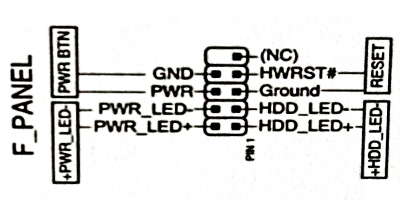
(7) System Front panel connector

(8) Chassis instrusion head (9) Speaker Connector (10) PCI Express (11) Clear RTC RAM (12) Front panel audio connector (13) Serial port connector (14) PCI Express slots (15) LPT connector (16) USB 3.0 connector (17) USB 2.0 connector

PART- B

Troubleshoot common problems of motherboard.

When it comes to computers, the motherboard is arguably the most important component inside the entire system. Sometimes referred to as the “backbone,” the motherboard is essentially what breathes life into all of your connected hardware. When the motherboard experiences troubleng , this can translate to critical problems for your entire system.

Symptoms of Motherboard Failure

Troubleshooting motherboard issues is one of the trickiest computer maintenance tasks simply because it requires a process of ruling out all connected to devices to inevitably uncover the culprit.

Additionally, motherboards do not typically provide warning signals that indicate specific problems. In essence, it’s up to you to narrow down and locate the problem through trial and error. Luckily, this process has been simplified with this handy and informative guide. These are a few effective tips for troubleshooting common motherboard issues and returning your PC to working condition.

Check Your Power

Motherboards have two power connections that include a 20-24 pin cable, as well as a 4-8 pin cable that can easily be overlooked. Ensure both connectors are secured firmly in place, and check for any sort of fraying or damage in the cables themselves.

Audit Your Components

Improperly seated/installed devices can be enough to cause a motherboard to go haywire. In uncommon cases, an improperly placed hardware device can even cause the POST process to fail, or even prevent the computer from turning on. To rule out bad seating of a component, remove and reseat easily accessible components such as the RAM, video card, and processor.

Likewise, most motherboards will provide error codes in the form of “beeping” tones to indicate various issues. If you hear a distinct series of beeps when powering your computer on, refer to your motherboard manual’s error code explanations.

Rule Out Short Circuiting

Like other circuit boards, motherboards can experience short circuiting. There are protections included to help prevent it, but it can and does still happen.

A short circuit can cause a computer to behave erratically by, for example, failing the POST process, crashing randomly, or failing to boot at all. You can easily determine the probability of a short by examining your motherboard. Is it elevated away from the case with hardware stands? Is every portion of the motherboard supported by a stand? Are all wires safely enclosed with plastic or rubber casing? Look around the motherboard for obvious defects that can heighten the risk for short circuiting.

Check the Power Button Connector

Even minimal damage to the wire that connects your power button to the motherboard can mimic a major motherboard issue. Ensure this connection is still secure and in place. If you’re having trouble locating this wire or the connector, refer to your motherboard and case manuals.

Hardware Incompatibilities

Simply put, if you’re using hardware in your computer that was released after your motherboard was manufactured, the chances for incompatibility are greatly heightened. Newer hardware can easily cause POST process and boot-up failures.

You can easily troubleshoot and fix this by updating your BIOS/UEFI to the latest versions. As new hardware is released, motherboard brands continuously update their hardware to support these new devices. This way, you can avoid any problems caused by new hardware you may have recently purchased.

Design a site like this with WordPress.com
Get started